Learn how to clean WordPress malware step by step — from scanning and core file verification to suspicious users and compromised plugins — without causing more damage.
Table of Contents
- Clean WordPress Malware: Why Order Matters More Than Speed
- Step 1: Full Scan Before Touching Anything
- Step 2: Verify and Restore WordPress Core Files
- Step 3: Audit Users and Suspicious Roles
- Step 4: Clean WordPress Malware Inside Plugins and Themes
- Step 5: Review the Database
- Step 6: Post-Cleanup Verification
- Common Mistakes When Cleaning WordPress Malware
- FAQ: Clean WordPress Malware
Clean WordPress Malware: Why Order Matters More Than Speed
Knowing how to clean WordPress malware properly is one of the most critical skills any site administrator can have. The instinctive reaction — deleting files at random, restoring backups blindly, installing security plugins without a plan — almost always makes things worse. I’ve seen sites where a rushed “cleanup” removed legitimate files, broke critical functionality, or, worst of all, left the original backdoor completely intact.
WordPress malware isn’t a single-file problem. It’s a system: there’s an entry point, modified files, potentially unauthorized user accounts, and frequently, code injected directly into the database. If you only address one part of the infection, the rest regenerates. That’s why you need a structured process — not a race against the clock.
If you’ve just discovered the infection and haven’t yet taken initial containment steps, I recommend reading what to do in the first 24 hours after a WordPress hack first. That article covers the prerequisite work: isolating, documenting, and preparing the ground. What follows here is the precise, hands-on part: the actual cleanup.
Step 1: Full Scan Before Touching Anything
Before modifying a single file, you need a complete map of the infection. Attempting to clean WordPress malware without a prior scan is like performing surgery without an X-ray — you risk cutting where you shouldn’t and leaving the real threat untouched.
Scanning Tools That Actually Work
There are two levels of scanning you should run in parallel:
- Server-level scan: If you have SSH access, tools like Linux Malware Detect (LMD) or ClamAV can sweep the entire file system for known malware patterns. This level detects files that WordPress plugins miss because they sit outside the WordPress installation directory.
- WordPress-level scan: Plugins like Wordfence or Sucuri Security compare your files against official repositories and flag suspicious code — functions like
eval(),base64_decode(), andstr_rot13()used in unusual contexts. Wordfence, in particular, verifies the integrity of your core files, themes, and plugins against the original versions in the WordPress repository.
The critical step here: document everything. Every file flagged as suspicious, every path, every modification date. A plain text document with your full list of findings will save you hours during cleanup. Don’t rely on memory when you’re in the middle of the process.
What to Look for in Scan Results
Not every flagged file is malware. False positives are common — especially in plugins that use legitimate obfuscation or eval() for templating engines. Focus on these red flags first:
- PHP files in directories that should never contain executable code (such as
/wp-content/uploads/). - Files with random-looking names:
wp-tmp.php,class-db.phpin the root directory, or any file you don’t recognize. - WordPress core files with a modification date more recent than your last update.
- Files with 777 permissions or write access open to all server users.
Step 2: Verify and Restore WordPress Core Files
Core files are the heart of the installation: wp-admin/, wp-includes/, and root-level files like wp-login.php, wp-cron.php, and index.php. Malware targets them frequently because they execute on every single page load.
How to Clean the Core Files
The safest approach isn’t to “repair” individual files — it’s to replace the entire core with clean ones:
- Download the exact same version of WordPress you currently have installed from the official WordPress releases page. Not the latest version — the one that matches your current installation. You can verify your version in
wp-includes/version.php. - Delete the
wp-admin/andwp-includes/folders from the infected server entirely. - Upload the clean folders from the downloaded package.
- Replace root-level files one by one:
index.php,wp-activate.php,wp-blog-header.php,wp-comments-post.php,wp-cron.php,wp-links-opml.php,wp-load.php,wp-login.php,wp-mail.php,wp-settings.php,wp-signup.php,wp-trackback.php, andxmlrpc.php.
Do not touch wp-config.php or .htaccess at this stage. Both require manual review, not blind replacement. wp-config.php holds your database credentials and security salts; .htaccess may contain legitimate rewrite rules added by plugins like Yoast or WooCommerce.
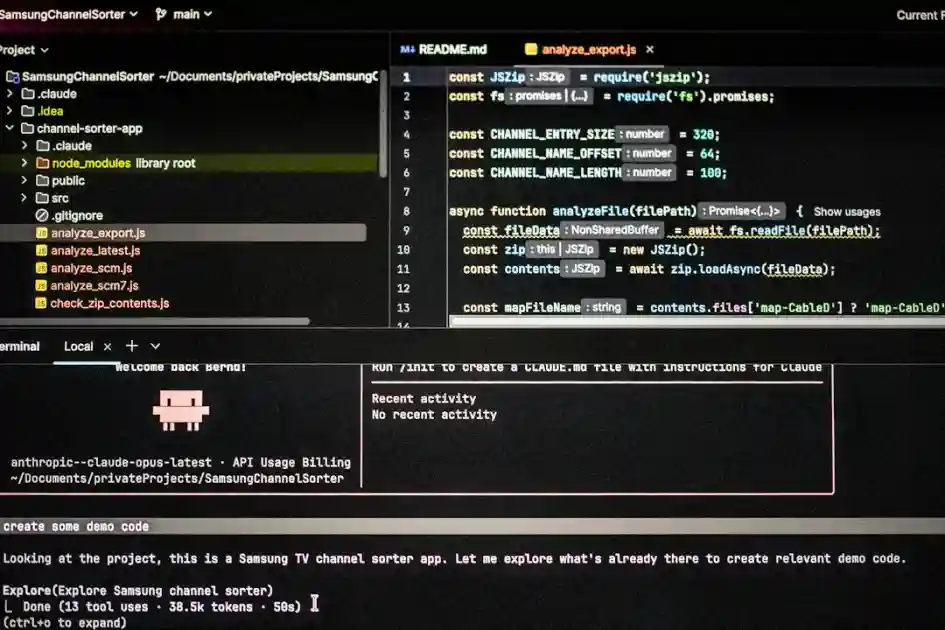
Manual Review of wp-config.php
Open wp-config.php and compare it line by line against the wp-config-sample.php file from the clean package. Look for:
- Lines containing
require,include, orevalthat aren’t part of the standard configuration. - Code added before the opening
<?phptag or after therequire_once ABSPATH . 'wp-settings.php';line. - Variables or constants you don’t recognize.
If you find suspicious code, remove it. If you’re unsure, compare it against a clean installation.
Step 3: Audit Users and Suspicious Roles
A common malware tactic in WordPress is to create hidden administrator accounts. These accounts let the attacker regain access even after all files have been cleaned.
Where and How to Find Fraudulent Users
Don’t rely solely on the WordPress dashboard’s “Users” panel. Malware can hide users from the visual listing. Query the database directly:
SELECT * FROM wp_users WHERE user_login NOT IN ('your_known_username');
SELECT * FROM wp_usermeta WHERE meta_key = 'wp_capabilities' AND meta_value LIKE '%administrator%';
The second query returns every user with the administrator role. If you find any you didn’t create, delete them. But before you do, note their ID and check wp_usermeta and wp_posts for any content or metadata associated with that account.
Changing Passwords and Security Salts
After removing suspicious users, change the passwords for all legitimate administrators. Use generated passwords of at least 20 characters. Then regenerate the security salts in wp-config.php using the official WordPress salt generator. This invalidates all active sessions, immediately cutting off any attacker who has an open session.
Step 4: Clean WordPress Malware Inside Plugins and Themes
The wp-content/ folder is where your site’s custom content lives: themes, plugins, uploads — and frequently, the hardest-to-detect malware.
Plugins: Delete and Reinstall, Don’t Try to Repair
For each installed plugin, the most reliable process is:
- Record the full list of active plugins (from the database:
SELECT option_value FROM wp_options WHERE option_name = 'active_plugins';). - Physically delete all plugin folders inside
wp-content/plugins/. - Download clean versions from the official WordPress.org repository or from the original vendor (for premium plugins).
- Upload the clean versions and reactivate only the ones you actually need.
One detail many guides skip: plugins that haven’t been updated in months are inherently suspect. If a plugin hasn’t received an update in over a year and there are actively maintained alternatives, now is the time to switch. There’s no point cleaning up and then reinstalling the same vulnerability.
Themes: Same Principle
If you’re using a theme from the official repository, delete it and re-download it. If you’re using a custom or premium theme, compare it file by file against the developer’s original version. Pay special attention to:
functions.php: the most frequently attacked file in any theme. Look for functions you don’t recognize, especially ones usingwp_enqueue_scriptto load unknown external JavaScript.header.phpandfooter.php: redirect scripts and cryptocurrency mining injections commonly appear here.- Any PHP file that wasn’t part of the original theme.
The Uploads Folder: Dangerous Territory
The wp-content/uploads/ folder should contain only images, PDFs, and other media files. No PHP files should ever be there. Run a recursive search:
find wp-content/uploads/ -name "*.php" -type fAny PHP file found in the uploads directory is almost certainly malware. Delete it immediately. Attackers use this folder because many server configurations allow PHP execution inside it by default.
Step 5: Review the Database
Malware doesn’t always live in files. Malicious code injected into the database can execute every time WordPress loads a page, a widget, or a comment.
High-Priority Tables to Review
wp_options: look for option names you don’t recognize, especially those containing serialized code with PHP functions. Thesiteurlandhomerows must point to your real domain — not to an external one.wp_posts: search for content containing<script>,<iframe>, or calls to external domains in thepost_contentfield. A useful query:SELECT ID, post_title FROM wp_posts WHERE post_content LIKE '%<script%' AND post_content LIKE '%eval%';wp_comments: spam comments can contain XSS injections. Review both pending and approved comments that include suspicious HTML.
If your database has thousands of compromised records, don’t try to clean them one by one. Use SQL REPLACE queries to remove specific patterns of injected code — but always take a full database backup before running any bulk query.
Step 6: Post-Cleanup Verification
You’ve cleaned files, users, plugins, and the database. Now you need to confirm the cleanup was effective and that nothing was left behind.
Post-Cleanup Checklist
- Run a second full scan using the same tools from Step 1. Compare results: everything that appeared before should now be gone.
- Check Google Search Console: if Google detected malware, there will be an alert in the “Security Issues” section. After cleaning, request a review. Google typically responds within 24–72 hours.
- Check blacklists: tools like VirusTotal or Sucuri SiteCheck show whether your domain is on any browser or antivirus blacklist.
- Monitor for 7–14 days: some infections include “scheduled reinfection” via WordPress cron jobs (
wp_cron) or server-level cron jobs. Check both.
Cron Jobs: The Forgotten Attack Vector
Attackers frequently register scheduled tasks that reinstall malware hours or days after the cleanup. Review:
- WP-Cron: temporarily install the WP Crontrol plugin and audit all scheduled tasks. Remove any that don’t correspond to a known plugin.
- Server cron: if you have SSH access, run
crontab -lfor your user and for the web server user (www-data, apache, nginx). Look for entries pointing to suspicious PHP files.
Common Mistakes When Cleaning WordPress Malware
Having worked through dozens of cleanup processes, these are the mistakes I see repeated most often:
- Restoring a backup without verifying it was already infected. Malware can sit dormant for weeks or months before activating. Your backup from “last week” may contain the same backdoor.
- Changing only the WordPress password and forgetting FTP, cPanel, and database credentials. If the attacker has FTP credentials, they’ll be back regardless of what you do inside WordPress.
- Installing a security plugin and assuming the job is done. A security plugin on a compromised installation is like fitting a burglar alarm while the intruder is still inside the building.
- Not updating WordPress, themes, and plugins after the cleanup. If the infection entered through a known vulnerability, leaving the same version installed is an open invitation for the attacker to return.
- Forgetting the uploads folder. As mentioned above, it’s the malware’s favorite hiding spot precisely because so many administrators never check it.
FAQ: Clean WordPress Malware
Can I clean WordPress malware without SSH access?
Yes, but it’s considerably slower. You can use the cPanel file manager and plugins like Wordfence for scanning. However, for serious infections that affect files outside the WordPress directory, SSH access — or at least full FTP access — is practically essential.
How long does a full cleanup take?
It depends on the scope of the infection. A small site with a localized injection can be cleaned in 2–4 hours. A WooCommerce site with multiple plugins and database-level malware can require 8–12 hours of work spread over several days, including the post-cleanup monitoring phase.
Should I reinstall WordPress from scratch?
Only as a last resort. A full reinstallation means losing the database — which means losing all your content. The process described in this guide lets you clean the site without losing data. A total reinstallation only makes sense if the database is also irrecoverably compromised.
Can security plugins prevent future infections?
They significantly reduce the risk, but they don’t eliminate it. A well-configured security plugin — firewall, login attempt limiting, periodic scans — adds a meaningful layer of protection. But real security comes from keeping everything updated, using strong passwords, and applying the principle of least privilege to users and file permissions.
If after reading through this process you feel the complexity exceeds your technical level or available time, delegating is the smart call. An experienced professional can carry out the cleanup faster and with far less risk of collateral damage. You can explore the available WordPress maintenance options to understand what kind of technical support exists for these situations.
My Take as a WordPress Developer
In my experience, most WordPress malware cleanups that go wrong don’t fail because of a lack of tools — they fail because of a lack of method. I’ve seen administrators delete entire core folders thinking they were removing the infection, when in reality the malicious code was sitting in a PHP file inside the uploads directory that nobody checked. What working on these cases has taught me most is that patience delivers better results than speed: document every finding before acting, verify twice before deleting, and don’t consider the cleanup finished until at least two weeks have passed without any signs of reinfection. The process isn’t glamorous, but it works.
Need help with your project? I work with businesses and agencies on WordPress, WooCommerce, AI and integrations. Get in touch and we can discuss it.