A practical guide to WooCommerce migration: what happens at each phase, what can go wrong, and how to prepare before you start. No surprises.
Table of Contents
- Why WooCommerce Migrations Are More Complex Than a Static Website
- The 3 Essential Phases of a WooCommerce Migration
- Platform-to-Platform Migration: Shopify or PrestaShop to WooCommerce
- How Long Does a WooCommerce Migration Actually Take?
- Common Mistakes That Turn a WooCommerce Migration into a Major Problem
- Frequently Asked Questions About WooCommerce Migration
If you’re planning a WooCommerce migration — whether that means switching servers, moving between platforms, or upgrading an aging installation to a new architecture — one of the most common questions is: what should I expect? Not in abstract technical terms, but in real time, concrete risks, and the order in which problems tend to surface. This article covers exactly that.
Why WooCommerce Migrations Are More Complex Than a Static Website
A WooCommerce store is not just a collection of files and a database. It’s an ecosystem of interdependent layers: product configurations with attributes and variations, order history, customer data, configured payment gateways, zone-specific tax rules, ERP or CRM integrations, and a plugin stack that may or may not behave identically in a new environment.
When you move all of that, copying files is not enough. Each layer has its own migration logic. Order data, for instance, involves relational tables in the database that can break if the process is executed out of sequence. Product URLs directly impact SEO if they aren’t properly redirected. And payment method states can get stuck in sandbox mode if they aren’t manually reconfigured after the transfer.
According to data from the WooCommerce ecosystem, more than 30% of post-migration issues originate in database inconsistencies that go undetected during staging tests. That means many errors only surface in production, once real traffic is flowing.
The 3 Essential Phases of a WooCommerce Migration
Phase 1: Audit and Preparation (the Most Overlooked Step)
Most store owners want to jump straight to the transfer. That’s a common mistake. Before moving anything, you need a real inventory of what you have:
- Active versions of PHP, WordPress, and all plugins
- Custom tables created by third-party plugins
- Theme customizations (functions added to
functions.php, hooks, filters) - Active integrations with external services (payment gateways, email marketing, ERP)
- Existing redirects and URL structure
- Data volume: number of products, orders, customers, and images
This inventory determines how long the migration will actually take. A store with 200 products and 500 orders can be migrated in 3–4 hours. One with 8,000 SKUs, size and color variations, and 15,000 historical orders can require anywhere from 2 to 5 days of careful work.
The backup strategy is also defined during this phase. Any serious migration begins with a complete, verified copy — not just a WordPress XML export, but a full database dump and all server files. The difference matters: a WordPress XML export does not include custom plugin tables.
Phase 2: The Transfer in a Staging Environment
A professional WooCommerce migration is never done directly in production. The work happens in a staging environment — an exact replica of the final destination — where the full process is executed and verified before the DNS switch is made.
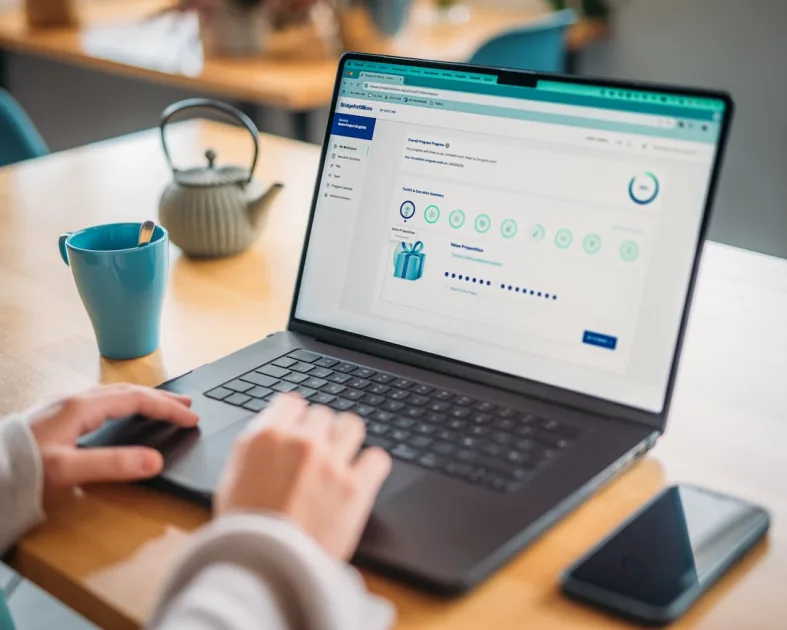
This is the phase where real problems surface. The most common issues found in a well-executed WooCommerce migration include:
- Absolute paths in the database: WooCommerce and many plugins store the site URL across dozens of tables. If it isn’t updated with a properly serialized search-and-replace process, resources (images, CSS) will keep pointing to the old domain.
- PHP version incompatibilities: If the new server runs PHP 8.2 and your store was built on PHP 7.4, it’s almost certain that some plugin or function will break. These issues must be caught before the live switch.
- File permissions: A silent killer. If folder and file permissions aren’t set correctly on the destination server, certain upload or write functions will fail intermittently.
- Cache plugin state: Caching plugins tend to cache URLs and configurations from the previous server. They need to be fully flushed and reconfigured in the new environment.
Time spent in staging isn’t wasted time. It’s the time that prevents your store from going down on a Monday morning with unprocessed orders piling up.
Phase 3: Going Live and Post-Migration Verification
Once the staging environment is validated, it’s time for the real switch. The standard process involves putting the old store into maintenance mode, taking a final last-minute backup, executing the final transfer, and updating the DNS records so the domain points to the new server.
DNS propagation can take anywhere from 1 to 48 hours globally. During that window, some users will see the old store while others see the new one. This is a genuine risk window if not managed carefully: orders could land in the old system, customer data may not sync, and inventory can fall out of step.
Post-migration verification must be systematic, not intuitive. A minimum checklist includes:
- Full purchase flow (add to cart → checkout → payment → confirmation)
- Status of transactional emails
- SSL certificate verification on the new domain or server
- 301 redirect checks from old URLs
- 404 error crawl using tools like Google Search Console
- Google Analytics and tracking pixel status
- Page load speed on the new server infrastructure
Platform-to-Platform Migration: Shopify or PrestaShop to WooCommerce
Migrating from another platform deserves its own category. Moving a store from Shopify or PrestaShop to WooCommerce requires an additional data transformation step, because the data models between platforms are not directly compatible.
The data areas that cause the most friction in this type of WooCommerce migration are:
Order history: WooCommerce has its own data schema for orders. Importing order history from another platform requires manually mapping each field and verifying that statuses (completed, refunded, cancelled) translate correctly into WooCommerce’s system.
Customer passwords: These can never be migrated directly because they’re hashed with different algorithms. The standard practice is to import customer data and force a password reset on first login. It’s a friction point that needs to be communicated to customers in advance.
Product attributes and variations: If you used “size” and “color” as options in Shopify, those become global or local attributes in WooCommerce. The conversion is not always 1:1, especially with per-variation pricing configurations.
Accumulated SEO equity: Shopify URLs follow a different structure than WooCommerce URLs. Without a complete 301 redirect map, years of built-up rankings can evaporate within weeks. In my experience, this is the point most underestimated by non-technical teams.
How Long Does a WooCommerce Migration Actually Take?
Here are realistic reference ranges based on real projects:
- Small store (under 500 products, under 2,000 orders): 1–2 days of technical work, assuming no complex integrations.
- Mid-size store (500–5,000 products, ERP or CRM integrations): 3–7 days, including staging testing time.
- Large store or platform-to-platform migration: 2–4 weeks, with distinct phases for audit, data transformation, import, and validation.
Any provider promising a complex migration faster than the scale warrants is cutting corners on the verification phase. And that always has a cost — you just pay it later.
Common Mistakes That Turn a WooCommerce Migration into a Major Problem
Migrating without a staging environment first is the most expensive mistake. The second most common is failing to audit third-party integrations before the transfer: a payment gateway configured in live mode on the old server can silently switch to sandbox on the new one, and the store owner won’t know until a customer reports they can’t check out.
Another frequent oversight is ignoring custom tables created by loyalty plugins, points systems, or subscription plugins. Those tables aren’t part of WooCommerce’s standard schema and aren’t exported by generic methods. If they’re not identified during the audit phase, they simply disappear in the transfer.
Finally, failing to communicate the migration to active customers is more of a management mistake than a technical one. If you have subscribers with automatic renewals or customers with orders in progress, a server change can disrupt those processes. A 48–72 hour heads-up makes the difference between a transparent process and a support crisis.
Frequently Asked Questions About WooCommerce Migration
Is data loss possible in a well-executed WooCommerce migration?
No, provided the process includes a full pre-migration backup, a staging environment, and post-migration verification. Data loss happens when one of those phases is skipped or when custom tables weren’t identified during the initial audit.
Does a WooCommerce migration affect SEO rankings?
It can, if URLs change without 301 redirects in place. If the domain stays the same and URL structures remain identical, the SEO impact is minimal. The main risk lies in platform-to-platform migrations or permalink structure changes.
What’s the best time to run a WooCommerce migration?
During periods of low traffic and sales: weeknight hours, well outside seasonal campaigns. Never close to Black Friday, Christmas, or any scheduled email marketing campaign.
Do you need a specialist, or can you use a plugin?
Migration plugins like WP Migrate DB or All-in-One WP Migration work well for simple installations. When active integrations, large data volumes, or platform-to-platform transfers are involved, having someone experienced in the WooCommerce ecosystem significantly reduces the risk of production issues.
If you’re considering handing this off to a professional, the services page explains how I handle this type of project for agencies and businesses.
My Take as a WordPress Developer
What strikes me most when I review botched WooCommerce migrations isn’t the technical error itself — it’s when it happens: almost always in production, with real traffic, because someone decided to skip staging to “save time.” In my experience, the migrations that go smoothly aren’t the fastest ones. They’re the ones that respect the order: audit, backup, staging, verification, cutover. Changing that order doesn’t speed the project up — it just moves the problems to a point where they’re far more expensive to fix.
Need help with your project? I work with businesses and agencies on WordPress, WooCommerce, AI and integrations. Get in touch and we can discuss it.